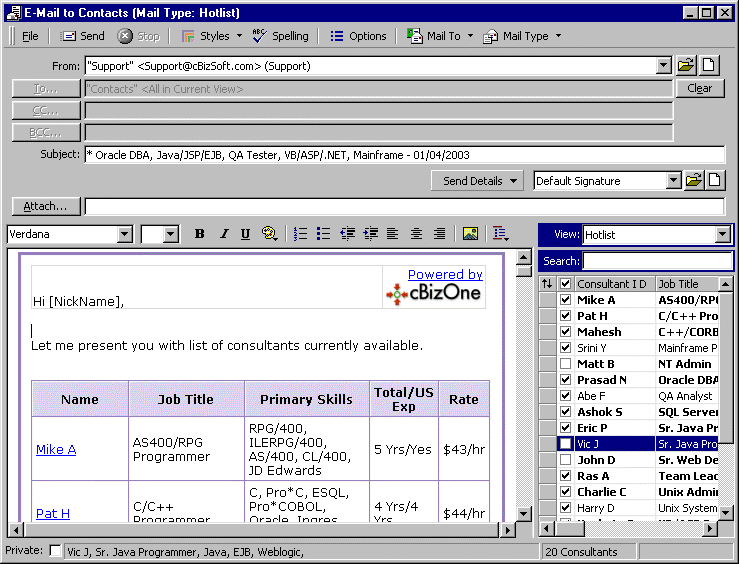
On the EMail menu, click Mail... to show EMail Window.
Click the New Signature button.
Enter any text and then click Close Button.
Enter the Signature Name and click OK Button.
Some of the advanced features are explained briefly. These are generally used by 'Power-Users'.
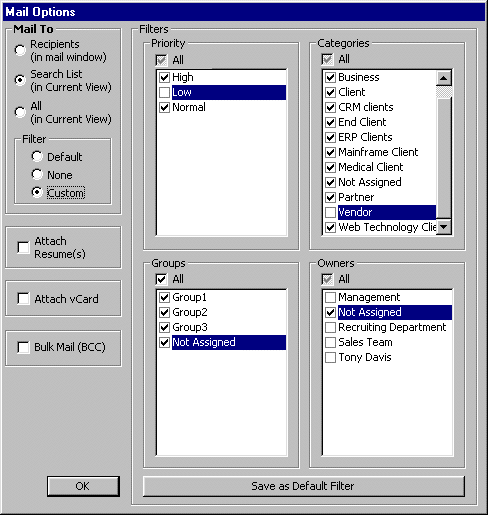
Sending mail (Hotlist, Reqlist, etc.) only to certain Categories, Groups, Owners.
Sending mail (Hotlist, Reqlist, etc.) only to searched Contacts.
Changing the order of Consultants or Requirements in the Hotlist/Reqlist.
Default signature is given in the Options Window. Signatures can also be used as standard template letters.
On the EMail menu, click Mail... to show EMail Window.
Click the New Signature button.
Enter any text and then click Close Button.
Enter the Signature Name and click OK Button.
On the EMail menu, click Mail.../Resume.../Hotlist.../Reqlist.. to show EMail Window.
Click on the desired Signature in the Signature Dropdown.
Note: Once you select a signature and send the mail, the same signature will be used next time for that Mail Type. For example, you selected "Hotlist Sig" and send the Hotlist, the "Hotlist Sig" will be automatically used for all the Hotlists in the future. That means you can assign four signatures for four types of Mail.
On the EMail menu, click Mail... to show EMail Window.
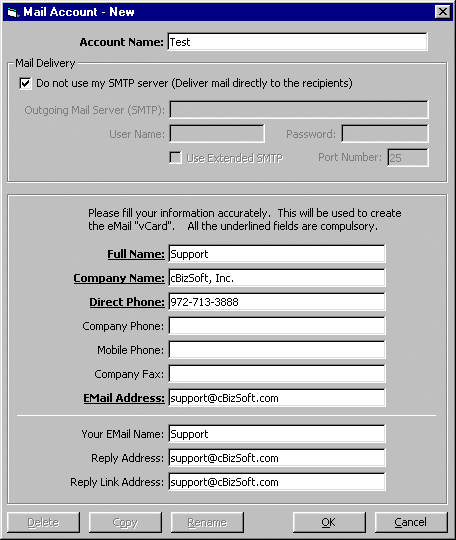
Click the New Account button in the From field to show the New Account Window
You can also open New Account Window by clicking on Tools menu, click Options, select Email tab and choose Advanced Tab.
To send an e-mail without using your SMTP server select the option Do not Use My SMTP Server.
Enter the Account name and other pertaining information which is self explanatory and enter OK to create new account.
On the Tools menu, click Options, select Email tab and choose Setup Tab. In the Outgoing Server (SMTP) field, type Outlook.
Or you can create a New Account and type Outlook in Outgoing Server (SMTP) and give account name as Outlook.
In the Resume or HotList/Reqlist mail window, if you want to select only the desired Consultants or Requirements based on the view, open the corresponding E-mail window, look for View and select the desired View from the drop down menu.
After the E-mail window is open, you can switch between the entities for the desired recipients by clicking on the tool bar MailTo and select the desired entity.
On the EMail menu, click Hotlist..., to show Hotlist EMail Window.
In the EMail Window on tool bar, click Options, to show EMail Options Window.
In the EMail Options Window, click Custom Filter option, opens the custom window.
Select (check) the desired Categories, Groups, Owners.
If you want to set this selection as the default for Hotlist, Click Save as Default Filter.
Click OK button to close EMail Options Window.
Click Send button.
You can do the same for Reqlist EMail or Regular EMail or Resume EMail.
Sending mail (Hotlist, Reqlist, etc.) only to searched Contacts
Search any combination of Fields using the Live Search Bar and/or Advanced Find. You will see the total number of items found during your search in the Status bar at the bottom left corner of cBizOne.
On the EMail menu, select Mail type.
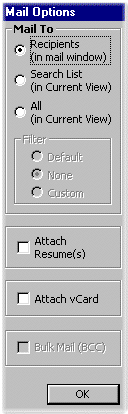
In the EMail Window on tool bar, click Options to show EMail Options Window.
In the EMail Options Window, select Search List in the Current View (This will send emails only to the searched list of people) in Mail To options and then click OK Button.
Also you have the option of sending Bulk email or Personalized email
Click Send button.
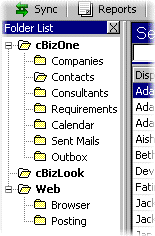
Click Contacts on the Folder List to open Contacts.
On EMail menu, click Hotlist... to show Hotlist EMail Window.
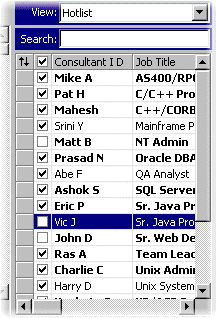
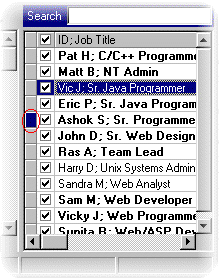
Initially, Consultants are sorted by Job Title. If you want to rearrange the order of Consultants in the Hotlist Email window, use the drag and drop feature shown below on the left side of the check boxes of Consultants.
You can do the same for Reqlist EMail or Resume EMail.
Open Outbox Folder.
Select the EMail job you want to delete.
Click the Delete Button on the toolbar (or Delete Key on the keyboard).
Open Outbox Folder.
Right click anywhere in the List View and then click Stop Hotlist Queue on the shortcut menu.
To start the queue, click Start Hotlist Queue in the shortcut menu.
You can do the same for Reqlist EMail or Regular EMail or Resume EMail.
On the EMail menu, click Resume..., to show Resume EMail Window.
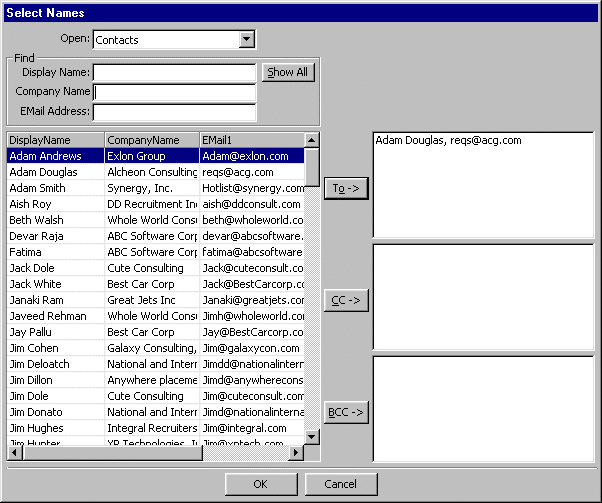
In the EMail Window, click To... or CC... or BCC... Button to show Address Book Window.
You can do the same for Regular EMail or Hotlist EMail or Reqlist EMail.
Styles (Stylesheets and Templates)
Using a Style Sheet to Send Email
To send an email using a Style Sheet, open a new mail window, Select Styles then choose Style Sheets and select the desired Style Sheet. You can edit in the body of the email before sending.
Note: Stylesheets are based on XML/XSL. You can create new styles and/or customize existing styles to suit your needs. Since this is beyond the scope of this tutorial, please contact our support team or visit http://www.w3schools.com for more information.
Templates are HTML documents created in the cBizOne email window, Microsoft FrontPage or other web authoring tools.
Create a New Template Email in cBizOne
To create a new Template from scratch in the body of the email, open a new mail window, Select Styles then choose Templates and select New. New Template Data can be inserted into a template by typing or copying and pasting from another source.
Create a Merge Fields Template
To create a Template email by pulling data from the cBizOne database and merging it into the email body, Open a mail window, Select Styles choose Templates and select Merge Fields.
A list of all fields in the database (including all custom fields) will appear in vertical window on the right side of the email window.
You can begin typing in the email body as you normally would and insert merge fields from the list on the right by selecting a database field and then clicking Insert. This process can be repeated as desired. When the merge email is complete, click send and the merge fields will automatically populate the data for the selected recipient’s records from the database.
Saving Templates
If you want to save the Template you created, on the Email window, click on Styles choose Templates then Save As and give the name of Template and save it to a location of your choice.
If you edit an existing Template and want to save your changes to the same Template, click on Styles then choose Templates then Save.
Send Email using an Existing Template
If you are using a template created outside of cBizOne, open a new mail window, Select Styles then choose Templates select Open and select the document you want to use. You can then type in the body of a template email as well as merge database fields from cBizOne.
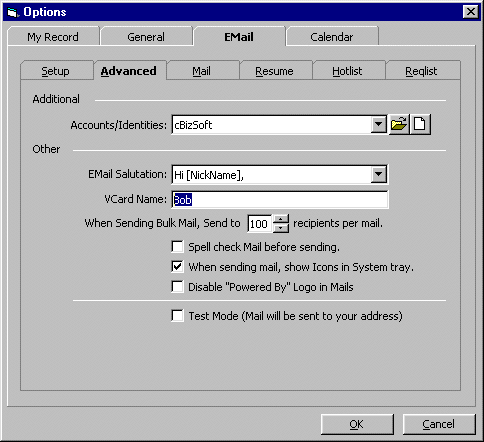
On the Tools menu, click Options to show the Options window, select the Email Tab and select the Advanced tab.
In the Advanced tab, Vcard Name field, you can enter a name for your Vcard.